Why I Set Up a Pi-hole and How I Got It Working
This is a simple write-up of how I set up a Pi-hole on a Raspberry Pi. I will cover what it does, how I installed it, and the bits that went wrong for me.
I had read about Pi-hole and how it can reduce ads across all devices on your Wi-Fi. I already use browser ad blockers, but I wanted to tinker with a Raspberry Pi and this felt like the perfect project.
Pi-hole runs as a local DNS server and blocks ads for every device on your network.
Why I bothered
Ads have become more intrusive than ever, especially on streaming services, YouTube, and certain websites. I wanted:
- Faster browsing (maybe)
- Fewer distractions
- More privacy
- Some nerdy fun
I had a spare Raspberry Pi 3 from a friend, so I put it to work.
The network flow
Here is the traffic flow after setting it up:
Device -> Router -> Pi-hole -> Internet
Initial setup
Before I could begin, I needed:
- HDMI to Micro HDMI cable
- USB-A keyboard
- USB-A mouse (I did not have one, so keyboard-only)
How does the Pi connect?
I was not even sure if my Pi supported Wi-Fi. To check, I ran:
iwconfigI looked for wlan0 in the output and it was there, so Wi-Fi was a go.
Installing Pi-hole
Installation was a one-liner:
curl -sSL https://install.pi-hole.net | bashI selected a few popular blocklists and configured Pi-hole to run on port 8080 because port 80 was already in use.
Connecting the Raspberry Pi to Wi-Fi
To get Wi-Fi working, I edited:
sudo nano /etc/wpa_supplicant/wpa_supplicant.confThen added:
network={
    ssid="YourWiFiSSID"
    psk="YourWiFiPassword"
}
After a reboot, I got the IP address using:
hostname -ITelling the router to use Pi-hole
I logged into my router (default IP and password were printed on the back) and changed DNS from automatic to manual. Then I entered the Pi's IP so it could handle DNS requests.
What is DNS resolution?
It is how your devices translate domain names (like bbc.co.uk) into IP addresses. Pi-hole sits here and blocks unwanted domains.
Taking a look at the dashboard
To access the dashboard, I visited:
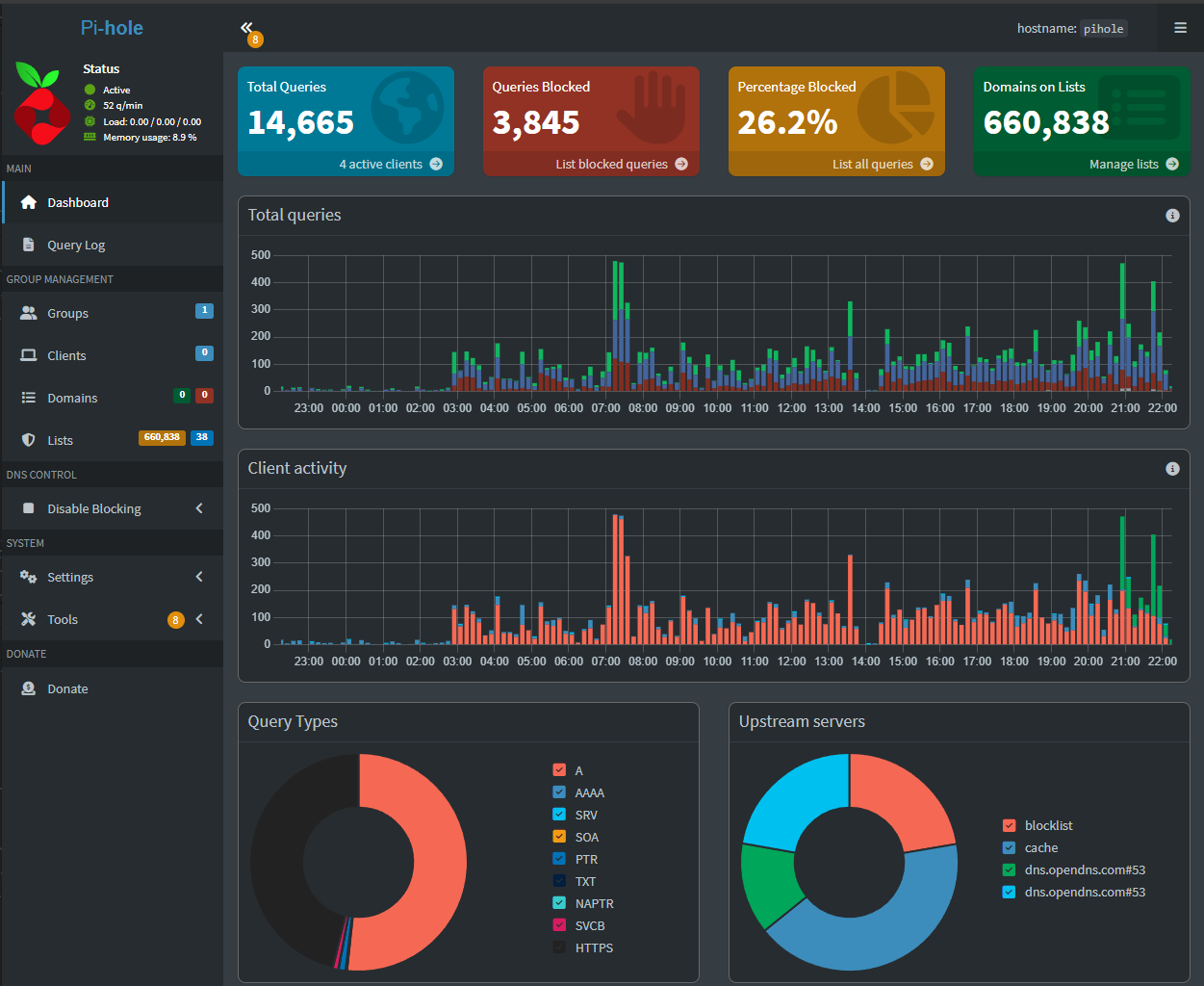
http://192.168.1.XXX/adminIt loaded, but there was zero activity. Uh-oh. Here is what a working one looks like:
Diagnosing why it was inactive
When I first checked the dashboard, it was not blocking anything. I tried a few things before it finally worked.
1. Checking the network interface
The dashboard showed it was using Ethernet instead of Wi-Fi. Since my Pi was on Wi-Fi, that needed fixing. I tried:
sudo pihole -rIt skipped the interface selection, so I edited the config directly:
sudo nano /etc/pihole/setupVars.confand updated:
PIHOLE_INTERFACE=wlan0After saving and rebooting, I tested:
nslookup bbc.co.uk 192.168.1.XXXIt timed out, so Pi-hole still was not responding to DNS requests.
2. Checking for open ports
I checked if Pi-hole was listening on port 53:
sudo netstat -tulnp | grep ":53"Port 53 was open, so at least it was listening.
3. Testing connectivity on the network
From my PC, I ran:
ping 192.168.1.XXXThat worked. Then I tested DNS on the Pi itself:
dig bbc.co.uk @127.0.0.1

// and

dig bbc.co.uk @192.168.1.XXX
Only the first command worked. So the Pi could resolve its own DNS, but not accept requests from other devices.
4. Updating the listen addresses
I updated the DNS config so it listened on both localhost and the network interface:
sudo nano /etc/dnsmasq.d/01-pihole.confand added:
listen-address=127.0.0.1
listen-address=192.168.1.XXX
5. Testing again
After restarting Pi-hole, I tested again:
dig bbc.co.uk @192.168.1.XXXThis time it worked. Finally.
Ready for use
After that, the dashboard started showing activity and ads were being blocked.
Making devices use Pi-hole
Here is how I routed devices through it:
- Windows PC: Updated DNS manually in Ethernet settings
- iPhone and Apple TV: Changed DNS under their Wi-Fi settings
Once configured, ads started disappearing across those devices.
Blocklists and limitations
Out of the box, Pi-hole does not block YouTube/ITVX ads. That is not a bug, those services often serve ads and content from the same domains.
To strengthen Pi-hole, I added a few more URLs to the block list and ran:
pihole -gI added:
- The Firebog list collection
- Steven Black's hosts file
Even then, YouTube remains tricky. DNS-level blocking has limits.
Final thoughts
Setting up Pi-hole was not totally smooth, but it was a fun weekend project. I learned a lot doing this.
My internet is now cleaner, faster, and more private. If you are comfortable with the terminal and enjoy tinkering, I would recommend it.
Bonus project: turn the Pi into a media server
With Pi-hole sorted, I plugged in an external hard drive full of movies and photos. It auto-mounted, so I could browse the files straight away.
I set up Samba (SMB) to access them from my Windows PC. I am now trying to use Kodi on my Xbox to stream the content. The only snag: the "Windows network" option is not showing up. Still working on that.
Let me know if you have had a similar experience, or if you have tips for getting Kodi working with SMB.